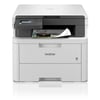
For your Brother DCP-L3520CDW printer to work optimally, it needs high-quality TN248 cartridges in black, cyan, magenta, and yellow. We stock the full range and you can choose between genuine
Brother cartridges, or our trusted compatible alternatives. Both options are guaranteed and won’t void your printer’s warranty.
At TonerGiant, you can either purchase an individual cartridge for your printer, or bulk up and save with a Toner Value Pack. Our discounted packs contain a complete set of cartridges for a
Brother DCP-L3520CDW, or you can upgrade to a high capacity toner value pack to never get caught unprepared again.
Over time, drum units can also wear down and this affects the printing quality. We offer genuine Brother DR248CL drum units and our
guide here provides help with changing the drum unit.
Features of the Brother Printer
The Brother MFC-9840CDW printer is a 3 in 1 colour printer, which prints copies and scans at a speedy rate of 18 ppm. The printer’s high-capacity internal memory allows you to store up to 512 MB
of data per device and with support for Apple AirPrint, you can print from mobile devices with ease. The printer is perfect for business use, with automatic double-sided printing and a paper
capacity of 250 sheets. Despite this, it has a very quiet operational noise, so won’t disturb the office!
FAQ's
Will the Brother printer print if toner is low?
When the TONER LOW message appears on your Brother MFC-9840CDW printer, you can still continue to print. This message just indicates that the toner cartridge is approaching the end of its life.
However, the printer quality may be affected and you might see fading and streaking on the prints. It’s a good idea to purchase a new Brother MFC-9840CDW toner cartridge once you receive this
warning message to prepare you for when the toner runs out completely.
How do I connect my Brother DCP printer to my laptop?
- Open Devices and Printers on your computer.
- Click Add a printer and choose Add a network, wireless or Bluetooth printer.
- Select 'The printer that I want isn't listed' and click 'Next'.
- Choose 'Add a printer using a TCP/IP address or hostname' and click 'Next'.
- Enter your printer's IP address (found under Wireless LAN or Wireless Direct in Communication Settings) in the Host name or IP address field.
- Click 'Next' and choose 'Use the driver that is currently installed.'
- Name your printer and click 'Next'.
- Select 'Do not share this printer' and click 'Finish'.
 Free Delivery On Everything
 Feefo Rated 4.7 (25k+ Ratings)





 Exclusive Business Pricing
  Switch & Save With Compatibles